Setting up Microsoft Family

At Waterford.org, we believe in creating a safer, healthier digital environment where children can thrive.
Setting up family safety controls is an important way to support that goal.
These tools empower families to guide screen time, block harmful or inappropriate content, and encourage responsible technology use.
It’s not just about setting limits—it’s about building safe, balanced digital habits that help children grow and learn with confidence.

 

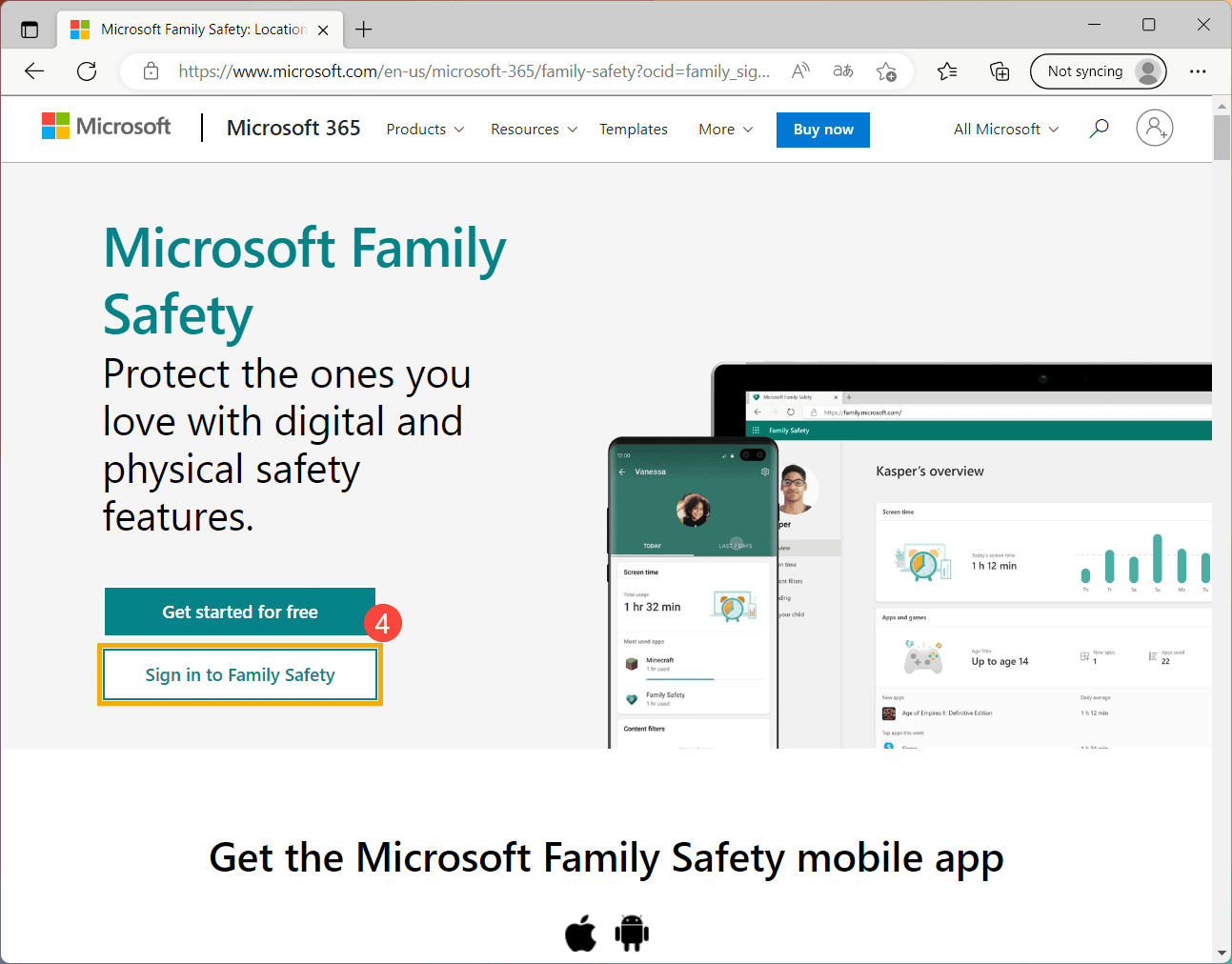
1. Set Up Microsoft Family Safety — Sign In

Go to account.microsoft.com/family and sign in with your Microsoft account to access Family Safety.

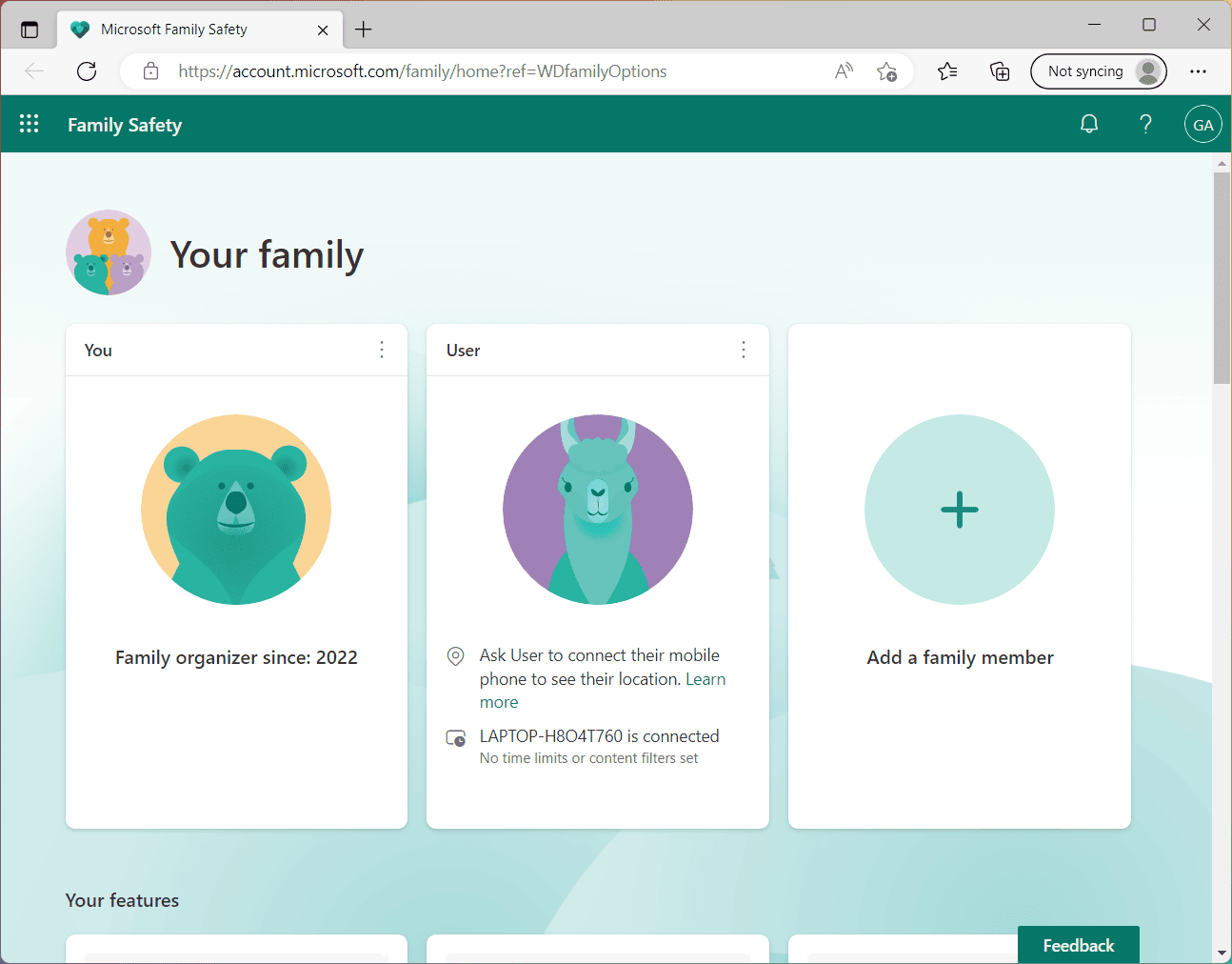
2. View Your Family Dashboard

Once signed in, you’ll land on the ‘Your family’ page where you can view current members and click Add a family member.

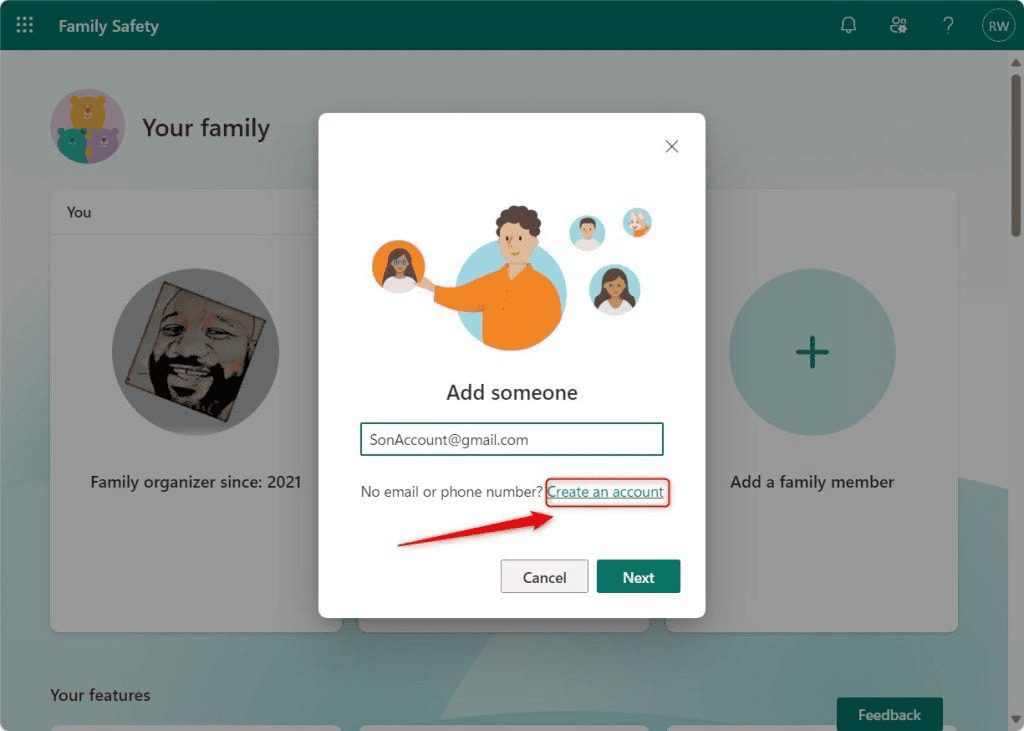
3. Add a Child (or Adult)

Choose whether to add an existing Microsoft account (e.g., child or adult) or create a new one directly. Enter their email or phone number, then click Next.

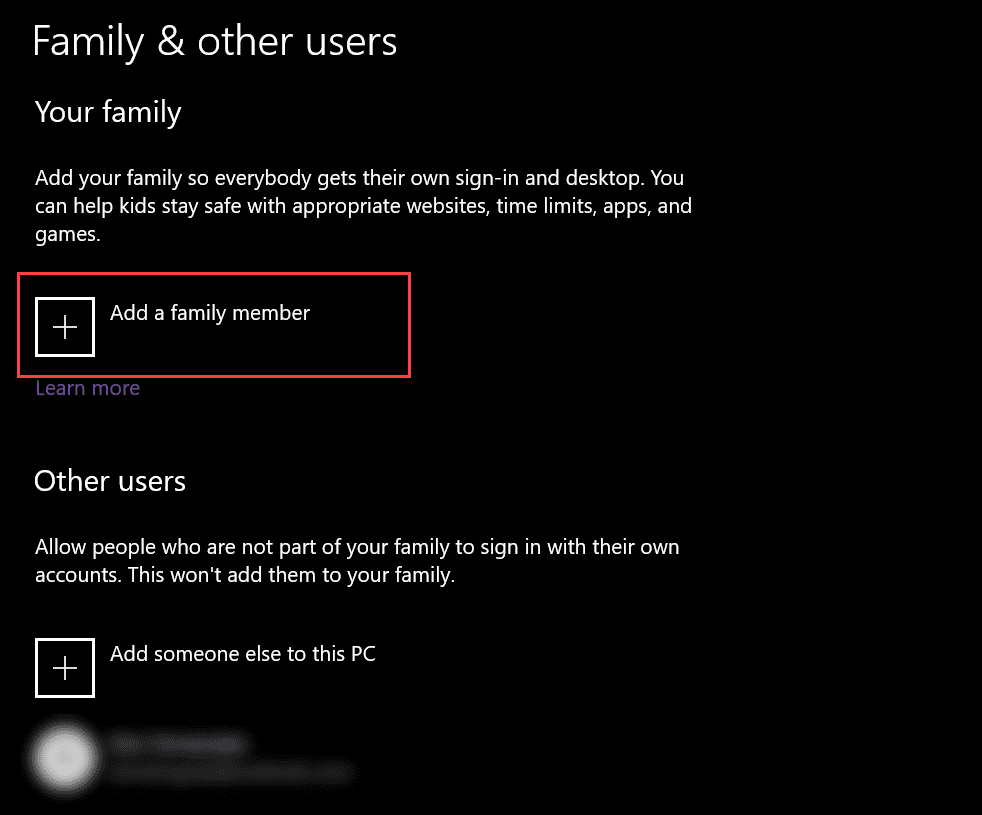
4. Add Family Member via Windows Settings

You can now add a family member directly to your Windows device: go to:
Settings → Accounts → Family & other users, then click Add a family member

For additional information about online child safety, please see the following resources:

https://fosi.org/parenting/
https://www.commonsensemedia.org/parents-ultimate-guides